
Starting with email marketing feels confusing. There are so many buttons, options, and features. Where do you even begin? Don't worry—you're not alone.
Brevo email marketing features include a drag-and-drop email editor, pre-built templates, contact management, automation workflows, signup forms, analytics dashboards, and built-in CRM tools. Everything works together to help you send professional emails to your subscribers without needing coding skills or marketing experience. The platform is designed with beginners in mind, so you won't feel lost clicking around.
This guide breaks down each Brevo email marketing feature in simple terms. We'll start with the basics and work our way up to more advanced tools. By the time you finish reading, you'll understand exactly what each feature does and when to use it. Let's get you sending emails with confidence.
📑 What You'll Learn
Core Email Marketing Features Overview

Brevo's core features fall into five main categories: campaign creation, contact management, automation, analytics, and CRM. Each category contains tools that work together to run your email marketing. Here's what each one means in plain English.
Email Campaigns
Create and send emails to your subscribers. This is the main tool you'll use to reach your audience.
Contact Management
Store subscriber information, organize lists, and segment your audience into groups.
Automation
Set up emails that send automatically based on triggers like signups or purchases.
Analytics
See who opens your emails, clicks links, and engages with your content.
Contact Lists and Segmentation
Your contact list holds everyone who signed up to receive your emails. Brevo lets you store unlimited contacts on all plans—including free. That's different from most competitors who charge based on list size.
Segmentation means dividing your list into smaller groups. For example, you might create segments for customers who bought last month, subscribers who haven't opened emails recently, or people interested in specific topics. Segments help you send more relevant emails to the right people.
Signup Forms
Signup forms let visitors join your email list. Brevo offers several form types: embedded forms that sit on your webpage, popup forms that appear after visitors browse for a while, and landing pages dedicated entirely to collecting signups. You can customize colors, fields, and text to match your brand.
💡 Beginner Tip
Start with just one signup form on your website. Keep it simple—ask only for email address and first name. You can always collect more information later as subscribers engage with your content.
Transactional vs Marketing Emails
Marketing emails promote your business —newsletters, sales announcements, and product updates. Transactional emails confirm actions—order receipts, password resets, and shipping notifications. Brevo handles both types from the same account, which simplifies everything for small business owners.
The Drag-and-Drop Email Editor
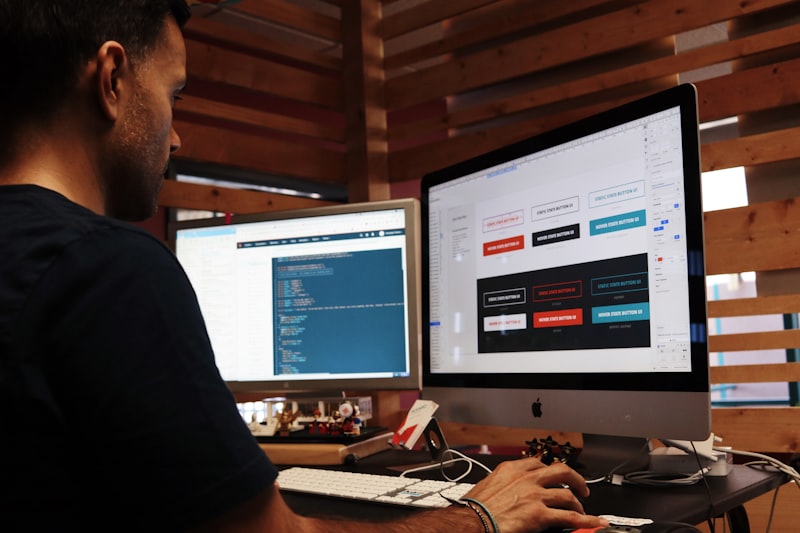
The drag-and-drop editor lets you build emails by moving blocks around—no coding needed. Click on an element, drag it where you want, and drop it in place. Text, images, buttons, and spacing all work this way.
How the Editor Works
Think of it like arranging furniture in a room. You pick up a couch (or in this case, a text block) and place it wherever looks right. Want to add a picture? Drag an image block into your email and upload your file. Need a button? Drop one in and type your button text.
The left sidebar shows all available content blocks. The center area displays your email as you build it. The right sidebar lets you customize whatever block you've selected—change fonts, colors, spacing, and alignment.
Text Blocks
Add headlines, paragraphs, and formatted text
EasyImage Blocks
Upload photos, logos, and graphics
EasyButton Blocks
Create clickable calls-to-action
EasyDivider Blocks
Add lines and spacing between sections
EasySocial Blocks
Link to your social media profiles
EasyHTML Blocks
Add custom code (for advanced users)
MediumEmail Templates
Templates are pre-designed emails you can customize. Instead of starting from a blank page, pick a template that matches your goal. Brevo offers 40+ templates for newsletters, promotions, announcements, welcome emails, and more.
Each template is mobile-responsive by default. That means your email automatically adjusts to look good on phones, tablets, and computers. You don't need to create separate versions for different devices.
✅ Quick Start Strategy
Pick a template close to what you need, then swap out the images and text. This approach takes 10 minutes instead of building from scratch, which could take an hour or more as a beginner.
Personalization Tags
Personalization tags insert subscriber information into your emails automatically. Type {{contact.FIRSTNAME}} in your email, and Brevo replaces it with each subscriber's actual first name when sending. "Hi {{contact.FIRSTNAME}}" becomes "Hi Sarah" for Sarah and "Hi Mike" for Mike.
Beyond first names, you can personalize with last names, company names, custom fields, and more. Personalized emails get higher open rates because they feel less like mass marketing.
Automation Workflows for Beginners

Automation sends emails for you based on triggers you set up once. When someone joins your list, they automatically get a welcome email. When someone abandons their cart, they automatically get a reminder. You create the workflow, and it runs forever without you touching it.
Common Automation Workflows
- Welcome Sequence — A series of emails introducing new subscribers to your brand. Usually 3-5 emails spread over 1-2 weeks.
- Abandoned Cart — Reminds shoppers about items left in their cart. Typically sends 1-3 emails over 24-72 hours.
- Birthday Emails — Sends automatic greetings and special offers on subscriber birthdays.
- Re-engagement — Targets subscribers who haven't opened emails in 60-90 days. Asks if they still want to hear from you.
- Post-Purchase — Thanks customers after buying. May include product tips or review requests.
Building Your First Workflow
Choose a Trigger
The event that starts your workflow. Examples: form submission, purchase, date-based event.
Add Actions
What happens after the trigger. Usually "send email" but can include waits and conditions.
Set Timing
Decide delays between steps. Send welcome email immediately, second email after 3 days, etc.
Create Email Content
Build each email in your sequence using the drag-and-drop editor.
Activate and Monitor
Turn on your workflow and check performance weekly.
Brevo includes automation on free and paid plans. Many competitors charge extra for this feature or limit it to expensive tiers. As a beginner, start with one simple workflow—a welcome email—before trying complex multi-step sequences.
💡 Beginner Tip
Your first automation should be a single welcome email that sends immediately when someone joins your list. Once that works, expand to a 3-email welcome sequence. Take small steps.
Understanding Your Email Analytics
Analytics show you what's working and what isn't in your email campaigns. Numbers tell the story: how many people opened, who clicked, and whether your emails actually drive results.
Key Metrics Explained
Open Rate
Percentage of recipients who opened your email. Industry average is around 20%. Higher is better.
Click Rate
Percentage who clicked a link in your email. Average is 2-5%. Shows content relevance.
Bounce Rate
Emails that couldn't be delivered. Keep this under 2% by cleaning your list regularly.
Unsubscribe Rate
People who opted out. Some unsubscribes are normal—under 0.5% per campaign is healthy.
Reading Your Campaign Reports
After sending a campaign, Brevo generates a report. You'll see total opens, unique opens, clicks by link, geographic data, and device breakdowns. The report updates in real-time, though most engagement happens within the first 24-48 hours.
Click heatmaps show exactly which links got attention. If your main button got 50 clicks but a footer link got 200, that tells you something about what your audience cares about. Use these insights to improve future emails.
💡 What Good Numbers Look Like: Open rates above 20% and click rates above 2.5% indicate healthy engagement. If you're below these benchmarks, focus on better subject lines (for opens) and more relevant content (for clicks).
A/B Testing Basics
A/B testing compares two versions of something to see which performs better. Send version A to half your list and version B to the other half. The winner tells you what your audience prefers.
Beginners should start by testing subject lines. Write two different subject lines for the same email. Brevo sends both versions and shows which got more opens. Over time, you'll learn what language resonates with your subscribers.
Frequently Asked Questions
Yes, Brevo works well for beginners. The drag-and-drop email editor requires no coding skills. Pre-built templates help you create professional emails quickly. The free plan lets you practice without spending money while you learn.
The interface uses clear labels and tooltips to explain features as you use them. Most beginners can send their first campaign within 30 minutes of signing up.
Brevo's free plan includes unlimited contacts, 300 emails per day, drag-and-drop editor, email templates, signup forms, basic automation workflows, CRM tools, and real-time analytics. You only pay when you need higher sending volumes.
The free plan is generous compared to competitors. Most platforms limit contacts or lock essential features behind paid plans. Brevo lets you access core functionality without a credit card.
Most beginners can send their first email campaign within 30 minutes. Learning basic automation takes a few hours of experimenting. Mastering advanced features like segmentation and A/B testing typically takes 2-4 weeks of regular use.
Brevo offers tutorials, help docs, and email courses to speed up your learning. The interface is intuitive enough that you can figure out most things by clicking around.
Yes, Brevo provides 40+ pre-designed email templates covering newsletters, promotions, announcements, and transactional emails. All templates are mobile-responsive and customizable through the drag-and-drop editor.
Templates save hours of design work. Pick one close to your goal, swap images and text, adjust colors to match your brand, and you're ready to send. No design skills necessary.
Ready to Start Your Email Marketing?
You've learned the features. Now it's time to practice. Create a free Brevo account and send your first campaign today.
Review Features Again →